
The Descript API lets you programmatically create projects, import media, and edit your projects — all without opening the app.
To learn more, visit descript.com/api.
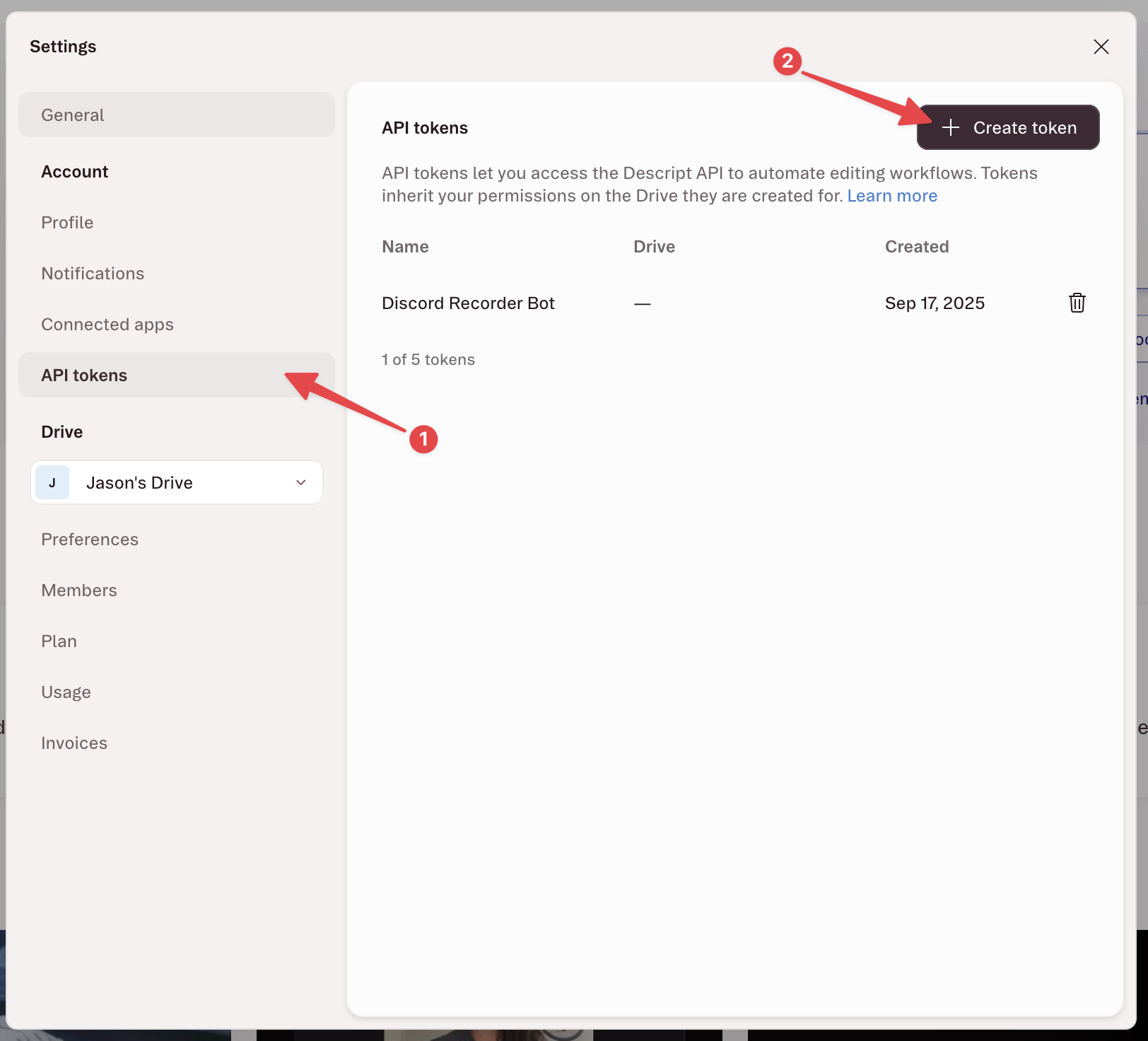
- In Descript, open Settings and select API tokens from the sidebar. Then click Create token.
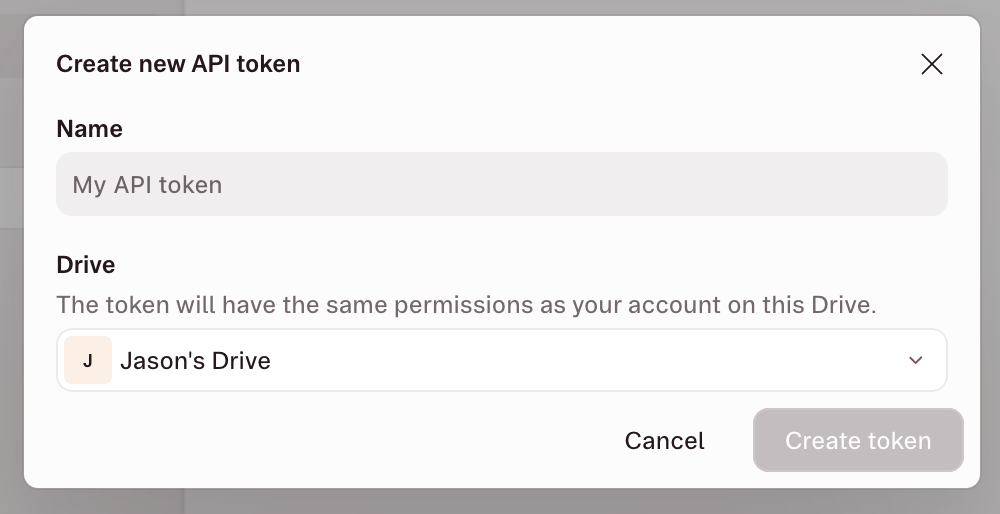
- Give your token a name and select the Drive it should be associated with. Click Create token.
- Copy your token and store it in a safe place. You won't be able to view it again. If you lose it, you'll need to generate a new one.
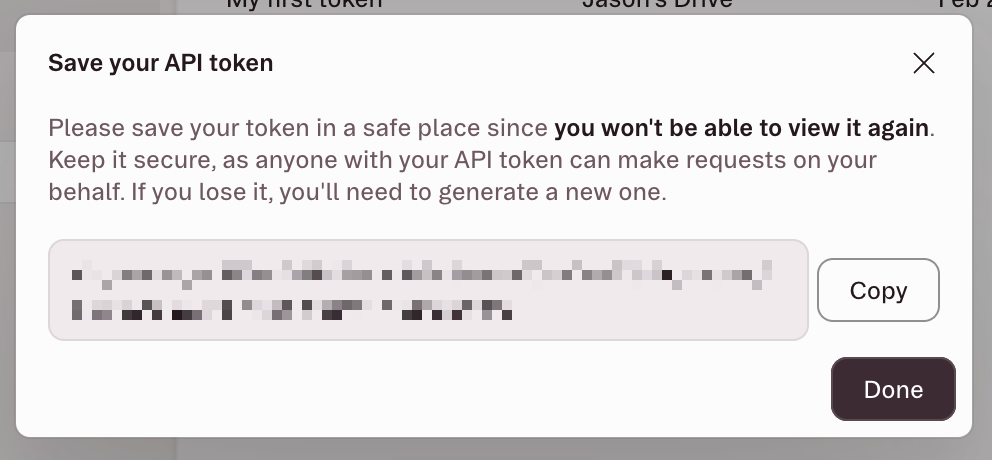
Warning: Treat your API token like a password. Anyone with your token can make API requests on your behalf using your account permissions. Never share your token publicly or commit it to source control.
Include the token as a Bearer token in the Authorization header of your API requests.
You can create a new project, import media, and place the media into a composition all in one API request using the import endpoint. This step also transcribes and processes the media so that it's ready for you or the agent to edit.
To import files, pass in public or pre-signed URIs. Currently, the API does not support uploading a file directly. To test the API with an example file, use the demo video included in the sample request below.
Importing and processing is an asynchronous job, so the response payload will contain a job_id for you to query the status of the job and information about the newly created project. Note that project_id and project_url are returned immediately alongside job_id, but opening the project in Descript will not always show the API's processing state in real time. To prevent unintended changes, we recommend that you do not make any changes to the project until the job has stopped.
Request
curl -X POST https://descriptapi.com/v1/jobs/import/project_media \
  -H "Authorization: Bearer YOUR_API_TOKEN" \
  -H "Content-Type: application/json" \
  -d '{
    "project_name": "My First Video",
    "add_media": {
      "demo.mp4": {
        "url": "https://test-files.descriptapi.com/demo-video.mp4"
      }
    },
    "add_compositions": [
      {
        "name": "Demo Video",
        "clips": [
          { "media": "demo.mp4" }
        ]
      }
    ]
  }'
Response
{
  "job_id": "project-media-import-9d635d5b",
  "drive_id": "c9c5c47e",
  "project_id": "e2f89ce6",
  "project_url": "https://web.descript.com/e2f89ce6"
}
Poll the job status endpoint using the job_id from the last step to check whether the import job is finished processing. When it is, you'll see job_state: "stopped". You can then check the results object to see its full results.
You can also pass in a callback_url as a part of the first import request, and we'll ping you when the job has stopped with the same response payload.
Request
curl https://descriptapi.com/v1/jobs/project-media-import-9d635d5b \
  -H "Authorization: Bearer YOUR_API_TOKEN"
Response
{
  "job_id": "project-media-import-9d635d5b",
  "job_type": "import/project_media",
  "job_state": "stopped",
  "project_id": "e2f89ce6",
  "project_url": "https://web.descript.com/e2f89ce6",
  "result": {
    "status": "success",
    "media_status": {
      "main.mp4": {
        "status": "success",
        "duration_seconds": 69.477006
      }
    },
    "created_compositions": [
      { "id": "f8e5088a-4d53-4aab-9d4f-c6624b7d7622", "name": "Demo Video" }
    ]
  }
}
Once your media is imported, you can use the agent edit endpoint to prompt Underlord for edits, just as you would in the app. Because it's an API, conversation and follow up questions aren't practical. So we recommend framing your edits as a one-shot prompt with all the information the agent needs.
Editing can take some time, so the response also returns a job_id that you can use to check the status of the job. You can also pass in a callback_url as a part of an agent request, and we'll ping you when the job has stopped.
Request
curl -X POST https://descriptapi.com/v1/jobs/agent \
  -H "Authorization: Bearer YOUR_API_TOKEN" \
  -H "Content-Type: application/json" \
  -d '{
    "project_id": "e2f89ce6",
    "prompt": "Add studio sound and captions"
  }'
Response
{
  "job_id": "project-agent-edit-e2f89ce6",
  "drive_id": "c9c5c47e",
  "project_id": "e2f89ce6",
  "project_url": "https://web.descript.com/e2f89ce6"
}
Poll the job status endpoint using the job_id. When the agent job completes successfully, the response includes a summary of what it accomplished (see the result.agent_response field). Use the project URL to open the project in Descript and review Underlord's changes.
Request
curl https://descriptapi.com/v1/jobs/project-agent-edit-e2f89ce6 \
  -H "Authorization: Bearer YOUR_API_TOKEN"
Once the agent job is successfully complete, you’ll see a response from the agent with a brief summary of what it accomplished. You can then use the project url to review its changes directly in Descript.
Response
{
    "job_id":"project-agent-edit-e2f89ce6",
    "job_type":"agent",
  "project_id":"YOUR_PROJECT_ID",
    "project_url":"https://web.descript.com/e2f89ce6",
    "job_state":"stopped",
    "created_at":"2026-02-09T05:42:27.554Z",
    "stopped_at":"2026-02-09T05:43:15.296Z",
    "drive_id":"1df135a5-dc4a-4dc3-8f7d-681cfbe961e4",
    "result":{
        "status":"success",
    "agent_response":"Done! I've applied Studio Sound to enhance your audio quality and added classic karaoke-style captions to your video.",
        "project_changed":true,
        "media_seconds_used":0,
        "ai_credits_used":32
  }
}
The CLI wraps the API into a simple to use command line tool with interactive flows for setting up authentication, importing, and prompting the agent. It also has built-in polling for job completion.
Before installing the CLI, you'll need Node.js 24 or higher. Visit nodejs.org to download and install the latest LTS version for your operating system.
First, install the latest version of the CLI using npm.
npm install -g @descript/platform-cli@latest
Next, configure the CLI with your API key.
descript-api config set api-key
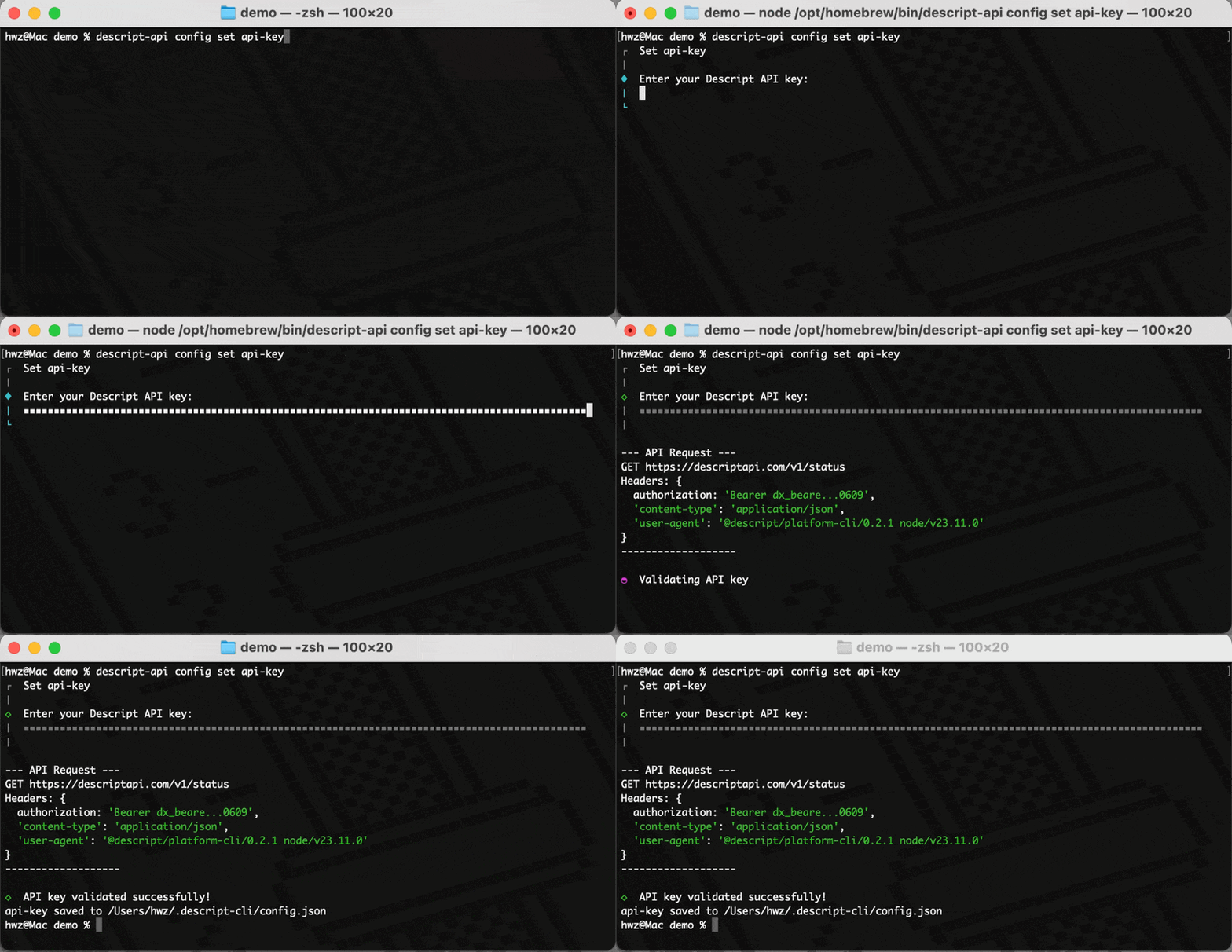
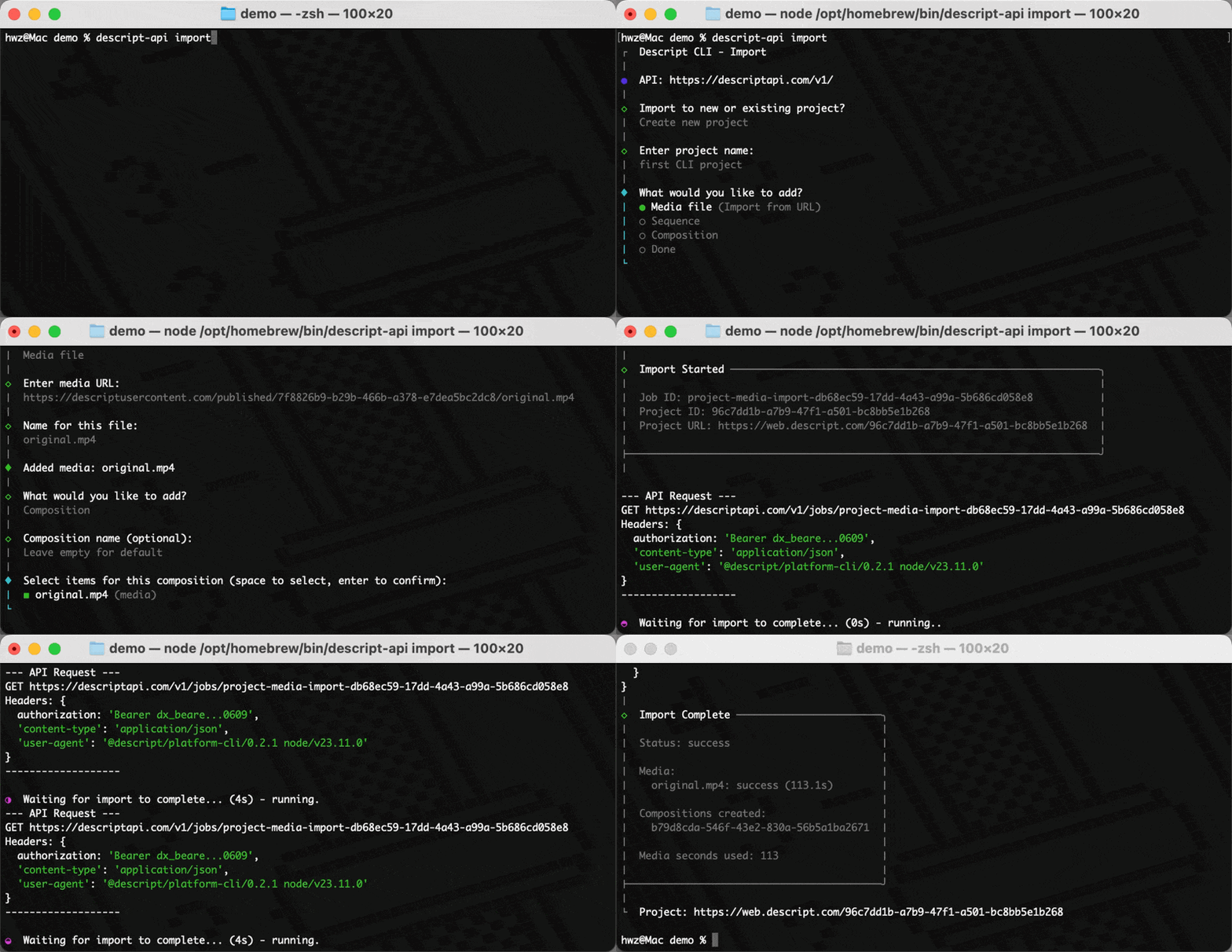
Use the import command to create a project by passing a project name and the link to any media you want to upload, or run descript-api import for interactive mode. The CLI shows live progress and outputs the project ID when done.
descript-api import \
  --name "My First Project" \
  --media "https://test-files.descriptapi.com/demo-video.mp4"
Use the agent command to edit a project by passing in the project id and an Underlord prompt.
descript-api agent \
  --project-id YOUR_PROJECT_ID \
  --prompt "Remove filler words and add Studio Sound to all clips"
You can also ask Underlord create a new project from a prompt alone by writing the script for you!
descript-api edit --new \
  --prompt "Write a script about how to make great coffee"
Import media and sequences
Import media files into a new or existing project and create compositions.
This endpoint can:
- Create a new project if
project_idis not provided - Import media files from URLs
- Create multitrack sequences
- Create compositions (timelines) from existing or new media in the project
- Trigger transcription and other background processing tasks
Media URL requirements
- URLs must be accessible by Descript servers
- URLs must support HTTP Range requests
- Recommended to sign URLs for 12-48 hours to reduce chance of failure
- Supported file types
Direct file upload
Instead of providing a URL, you can upload files directly by specifying content_type and file_size for a media item. The response will include a signed upload_url for each direct upload item. PUT the file bytes to that URL, and the import job will process it automatically. See the Direct file upload guide for a full walkthrough.
Async Operations
Imports run in the background and return a job_id. Monitor progress via the GET /jobs/{job_id} endpoint.
Dynamic webhook
If callback_url is provided, Descript will POST the job status to that URL when the job finishes (successfully or not).
The payload will match the format returned by GET /jobs/{job_id}.
Authorizations:
Request Body schema: application/jsonrequired
Media import and project creation request
| project_id | string <uuid> Existing project ID to import media into. If not provided, a new project will be created. When importing into an existing project, media filenames must not conflict with existing files. |
| project_name | string Name for the new project. Only used when project_id is not provided. |
| team_access | string Default: "none" Enum: "edit" "comment" "view" "none" Access level for drive members. Only applicable when creating a new project
(when project_id is not provided). Defaults to
|
| folder_name | string Folder path to place the new project in (e.g. "Clients/Acme/Videos"). Supports nested paths using "/" as separator. Only applicable when creating a new project (when project_id is not provided). Existing folders along the path are reused; missing segments are created automatically. |
| workspace_name | string Existing workspace to create the new project in, matched by name (case-insensitive). Only applicable when creating a new project (when project_id is not provided). Reserved names: When omitted, For custom workspaces, the caller must be a member of that workspace. |
object Map of media reference IDs (display names with optional folder paths) to media import items. Keys are the display names that will appear in the project (e.g., "Misc/intro.mp4" or "demo.mp4"). Values define how to import each media item (URL import or multitrack sequence). | |
Array of objects Optional list of compositions to create in the project | |
Array of objects Updates to existing compositions in the target project. Each entry targets an
existing composition by | |
| callback_url | string <uri> Optional webhook URL to call when the job completes or fails. Descript will POST the job status (same format as GET /jobs/{job_id}) to this URL. |
Responses
Request samples
- Payload
Most common use case for seeding a project with a simple composition
{- "project_name": "Marketing Video",
- "add_media": {
}, - "add_compositions": [
- {
- "name": "Rough Cut",
- "clips": [
- {
- "media": "Misc/intro.mp4"
}, - {
- "media": "demo.mp4"
}, - {
- "media": "Misc/outro.mp4"
}
]
}
]
}Response samples
- 201
- 400
- 401
- 402
- 403
- 404
- 429
{- "job_id": "6dc3f30a-58c2-4174-96a6-dc18cf3c7776",
- "drive_id": "c9c5c47e-158a-49f7-846b-4f6ee2a229a2",
- "drive_name": "My Team Workspace",
- "project_id": "9f36ee32-5a2c-47e7-b1a3-94991d3e3ddb",
- "upload_urls": {
- "property1": {
- "asset_id": "b4695157-0d1d-4da0-8f9e-5c53149389e4",
- "artifact_id": "b7bd6bbb-c7f1-4314-8742-2aeeeece9d12"
}, - "property2": {
- "asset_id": "b4695157-0d1d-4da0-8f9e-5c53149389e4",
- "artifact_id": "b7bd6bbb-c7f1-4314-8742-2aeeeece9d12"
}
}
}Import media to drive library
Import media files into the drive media library (shared workspace-level media collection).
Unlike project media import, this endpoint adds files to the drive's shared media library rather than to a specific project. Files can optionally be placed in a folder.
Media URL requirements
- URLs must be accessible by Descript servers
- URLs must support HTTP Range requests
- Recommended to sign URLs for 12-48 hours to reduce chance of failure
- Supported file types
Direct file upload
Instead of providing a URL, you can upload files directly by specifying content_type and file_size for a media item. The response will include a signed upload_url for each direct upload item. PUT the file bytes to that URL, and the import job will process it automatically. See the Direct file upload guide for a full walkthrough.
Async Operations
Imports run in the background and return a job_id. Monitor progress via the GET /jobs/{job_id} endpoint.
Dynamic webhook
If callback_url is provided, Descript will POST the job status to that URL when the job finishes (successfully or not).
Authorizations:
Request Body schema: application/jsonrequired
| folder_id | string Target drive media folder ID (UUID) or "root" for the root folder. If not provided, defaults to root. |
required | object [ 1 .. 100 ] properties Map of media reference IDs to their import definitions. Key is the display name or path (e.g. "video.mp4" or "Folder/SubFolder/video.mp4"). Paths with forward slashes create nested folders automatically. |
| callback_url | string <uri> Optional callback URL to receive notifications about job status changes. |
Responses
Request samples
- Payload
{- "folder_id": "string",
- "add_media": {
},
}Response samples
- 201
{- "job_id": "string",
- "drive_id": "string",
- "folder_id": "string",
- "upload_urls": {
}
}Agent edit
Use a background agent to create and edit projects using a natural language prompt.
- Edit existing project: Provide a
project_idto edit an existing project - Target a specific composition: Provide both
project_idandcomposition_idto direct the agent to a specific composition within the project - Create new project: Provide a
project_nameinstead ofproject_idto create a new project
Common use cases
- Create new content: "create a 30-second video about cooking tips"
- Apply audio effects: "add studio sound to every clip"
- Remove filler words: "remove all filler words from the transcript"
- Create highlights: "create a 30-second highlight reel"
- Content editing: "remove the section from 1:30 to 2:15"
Async Operations
Agent edits run in the background and return a job_id. Monitor progress via the GET /jobs/{job_id} endpoint.
Dynamic webhook
If callback_url is provided, Descript will POST the job status to that URL when the job completes or fails.
The payload will match the format returned by GET /jobs/{job_id}.
Authorizations:
Request Body schema: application/jsonrequired
AI agent request
| project_id | string <uuid> The ID of an existing project to edit. Mutually exclusive with |
| project_name | string Name for creating a new project. Mutually exclusive with |
| composition_id | string Composition to target within the project. When provided,
the agent will focus its edits on this specific composition rather
than choosing one automatically. Only valid when Accepts any of the following formats:
|
| model | string AI model to use for editing. Accepts a canonical model id
(e.g. Defaults to |
| prompt required | string Natural language instruction for the agent to execute. Examples: "add studio sound to every clip", "remove all filler words", "create a 30-second highlight reel" |
| team_access | string Enum: "edit" "comment" "view" "none" Access level for team members when creating a new project.
Only applicable when |
| callback_url | string <uri> Optional webhook URL to call when the job completes or fails. Descript will POST the job status (same format as GET /jobs/{job_id}) to this URL. |
| conversation_id | string <uuid> Required when following up on a previous agent job in the same session.
Every response includes a Requires |
| conversational | boolean Set to Defaults to |
Responses
Request samples
- Payload
{- "project_name": "Cooking Tips Video",
- "prompt": "create a 30-second video about cooking tips with background music"
}Response samples
- 201
- 400
- 401
- 402
- 403
- 404
- 429
{- "job_id": "6dc3f30a-58c2-4174-96a6-dc18cf3c7776",
- "drive_id": "c9c5c47e-158a-49f7-846b-4f6ee2a229a2",
- "drive_name": "My Team Workspace",
- "project_id": "9f36ee32-5a2c-47e7-b1a3-94991d3e3ddb",
- "conversation_id": "a1b2c3d4-e5f6-7890-abcd-ef1234567890",
- "resolved_model": "claude-opus-4.8"
}List agent models
List the currently available agent models and the aliases that resolve to them.
The model parameter on POST /jobs/agent accepts any
value listed under availableModels[].id or aliases[].id. Aliases let you target
the latest
recommended model for a given tier without chasing version bumps — for example,
passing claude-opus always routes to whichever Claude Opus version Descript
currently recommends.
The catalog changes as models launch and retire, so this endpoint's live response is the source of truth — the example below is an abridged illustration, not the full list.
Cost tiers are coarse buckets — low, medium, high — useful for showing
users a relative price/performance signal. Exact pricing is reported per job via
the ai_credits_used field on GET /jobs/{job_id}.
When model is omitted on POST /jobs/agent, the request defaults to auto, which
selects a recommended model for your account. auto is a medium-cost option. For an
auto request, result.resolved_model on GET /jobs/{job_id} reports
auto; for an explicit model or alias it reports the canonical id that ran.
Authorizations:
Responses
Response samples
- 200
- 401
- 429
{- "availableModels": [
- {
- "id": "auto",
- "cost": "medium"
}, - {
- "id": "claude-opus-4.8",
- "cost": "high"
}, - {
- "id": "claude-haiku-4.5",
- "cost": "low"
}
], - "aliases": [
- {
- "id": "claude-opus",
- "resolvesTo": "claude-opus-4.8",
- "description": "Tracks stable Anthropic Claude Opus",
- "cost": "high"
}
]
}Publish project media
Publish a project composition to create a shareable link and download the exported file.
Publishes a specific composition from a project, rendering the output as video or audio at the specified resolution. When the job completes successfully the result contains both:
share_url: a public URL that can be used to view the published content on Descript's share site.download_url: a time-limited signed URL to download the exported media file directly, along withdownload_url_expires_atindicating when the link expires.
Republishing
Publishing the same composition a second time automatically reuses the previous share URL,
overwriting its content — so bookmarks and links handed out for the first publish keep working.
Republish matching is keyed on (project_id, composition_id, media_type), so a Video publish
and an Audio publish of the same composition produce two separate share URLs.
Async Operations
Publish jobs run in the background and return a job_id. Monitor progress via the GET /jobs/{job_id} endpoint,
which returns the share_url, download_url, and download_url_expires_at fields once the job finishes.
Dynamic webhook
If callback_url is provided, Descript will POST the job status to that URL when the job completes or fails.
The payload will match the format returned by GET /jobs/{job_id}.
Authorizations:
Request Body schema: application/jsonrequired
Publish request
| project_id required | string <uuid> The ID of the project to publish. |
| composition_id | string Composition to publish. If omitted, the first composition in the project is used. Accepts any of the following formats:
|
| media_type | string Default: "Video" Enum: "Video" "Audio" Media type of the published output. Defaults to If the target composition has no video content:
|
| resolution | string Enum: "480p" "720p" "1080p" "1440p" "4K" Resolution for the published output. Only applicable when media_type is Video. |
| callback_url | string <uri> Optional webhook URL to call when the job completes or fails. Descript will POST the job status (same format as GET /jobs/{job_id}) to this URL. |
| access_level | string Enum: "public" "unlisted" "drive" "private" Desired access level for the published share page.
If omitted, the drive's configured default is used.
Returns 403 if the requested level is not permitted by the drive's publish settings
(e.g. requesting |
Responses
Request samples
- Payload
{- "project_id": "9f36ee32-5a2c-47e7-b1a3-94991d3e3ddb",
- "composition_id": "39677a40-1c43-4c36-8449-46cfbc4de2b5",
- "media_type": "Video",
- "resolution": "1080p"
}Response samples
- 201
- 400
- 401
- 403
- 404
- 422
- 429
{- "job_id": "6dc3f30a-58c2-4174-96a6-dc18cf3c7776",
- "drive_id": "c9c5c47e-158a-49f7-846b-4f6ee2a229a2",
- "drive_name": "My Team Workspace",
- "project_id": "9f36ee32-5a2c-47e7-b1a3-94991d3e3ddb",
}Export project transcript
Export the transcript from a project composition.
Supports plain text, Markdown, HTML, RTF, DOCX, and SRT (SubRip subtitle) formats. Options include speaker labels, timecodes, and markers.
The response body is the raw transcript file (binary for docx,
text otherwise) with a Content-Disposition: attachment header and
an X-Composition-Id header identifying the exported composition.
Authorizations:
Request Body schema: application/jsonrequired
Transcript export request
| project_id required | string <uuid> The ID of the project to export from. |
| composition_id | string <uuid> The ID of the composition to export. Defaults to the first composition. |
| format required | string Enum: "txt" "markdown" "html" "rtf" "docx" "srt" Transcript file format. The response body is the raw transcript file
in the requested format (binary for |
| include_speaker_labels | string Default: "changes" Enum: "off" "changes" "every_paragraph" Speaker label mode.
|
| include_markers | boolean Default: false Include markers in the transcript. |
object Timecode options. When provided, timecodes are included in the output. |
Responses
Request samples
- Payload
{- "project_id": "9f36ee32-5a2c-47e7-b1a3-94991d3e3ddb",
- "format": "txt",
- "include_speaker_labels": "changes"
}Response samples
- 200
- 400
- 401
- 403
- 429
Speaker 1: Hello, welcome to the show.

Speaker 2: Thanks for having me.
Export project timeline
Export a project composition as a timeline file (EDL, AAF, SESX, FCPXML, Premiere XML, or DaVinci Resolve XML) for use in another DAW/NLE. Media files are never bundled — only the timeline / XML / EDL file itself is exported.
Async Operations
Timeline exports run in the background and return a job_id. Monitor
progress via the GET /jobs/{job_id} endpoint. When
the job reaches job_state: stopped with result.status: success, the
timeline file is available at the time-limited signed URL in
result.download_url (valid until result.download_url_expires_at).
Mirrors the timeline export options surfaced in the Descript desktop UI under Export → Timeline, except for media bundling which is always disabled for the public API.
Availability
Timeline export requires a Creator plan or higher (Creator, Business,
or Enterprise). Requests from Free or Hobbyist plans return 403.
Dynamic webhook
If callback_url is provided, Descript will POST the job status to that URL when the job completes or fails.
The payload matches the format returned by GET /jobs/{job_id}, including the
time-limited signed result.download_url (and result.download_url_expires_at) on success — so the
webhook is self-contained and you do not need to call GET /jobs to retrieve the exported file.
Authorizations:
Request Body schema: application/jsonrequired
Timeline export request
| project_id required | string <uuid> The ID of the project to export from. |
| composition_id | string <uuid> The ID of the composition to export. Defaults to the first composition. |
| format required | string Enum: "aaf" "sesx" "edl" "fcp" "premiere" "davinci_resolve" Timeline file format.
|
| strip_spaces | boolean Default: false AAF only. Strip spaces from media filenames for Logic Pro
compatibility. Rejected ( |
| create_track_per_file | boolean Default: false Generate one EDL/XML track per source media file rather
than per script. Not supported for |
| snap_frame_rates | boolean Default: true Premiere / DaVinci Resolve only. When |
| include_markers | boolean Include markers in formats that support them (EDL, SESX). Defaults to the format-specific default (true for EDL/SESX/FCP/Premiere/DaVinci, false for AAF). |
| callback_url | string <uri> Optional webhook URL to call when the job completes or fails. Descript will POST the job status (same format as GET /jobs/{job_id}) to this URL. |
Responses
Request samples
- Payload
{- "project_id": "9f36ee32-5a2c-47e7-b1a3-94991d3e3ddb",
- "format": "edl"
}Response samples
- 201
- 400
- 401
- 403
- 429
{- "job_id": "6dc3f30a-58c2-4174-96a6-dc18cf3c7776",
- "drive_id": "c9c5c47e-158a-49f7-846b-4f6ee2a229a2",
- "project_id": "9f36ee32-5a2c-47e7-b1a3-94991d3e3ddb",
- "format": "edl"
}List jobs
List recent jobs with optional filtering by project or job type.
By default, jobs created within the last 7 days are returned. Use created_after and
created_before to customize the time range. The maximum lookback is 30 days.
Results are paginated. Use the cursor from the response pagination.next_cursor to
fetch subsequent pages.
Query parameters allow you to filter the results:
- Filter by
project_idto see all jobs for a project - Filter by
typeto see specific job types (import/project_media, agent)
Authorizations:
query Parameters
| project_id | string <uuid> Filter by project ID |
| type | string Enum: "import/project_media" "agent" Filter by job type |
| cursor | string Cursor for the next page of results, obtained from |
| limit | integer [ 1 .. 100 ] Default: 20 Number of items per page (1-100). Defaults to 20. |
| created_after | string <date-time> Filter jobs created after this timestamp (ISO 8601). Default: 7 days ago. Oldest allowed: 30 days ago. |
| created_before | string <date-time> Filter jobs created before this timestamp (ISO 8601). Default: now. |
Responses
Response samples
- 200
- 400
- 401
- 429
{- "data": [
- {
- "job_id": "6dc3f30a-58c2-4174-96a6-dc18cf3c7776",
- "job_type": "import/project_media",
- "job_state": "stopped",
- "created_at": "2025-11-18T10:30:00Z",
- "stopped_at": "2025-11-18T10:35:00Z",
- "drive_id": "c9c5c47e-158a-49f7-846b-4f6ee2a229a2",
- "project_id": "9f36ee32-5a2c-47e7-b1a3-94991d3e3ddb",
- "result": {
- "status": "success",
- "media_status": {
- "Misc/intro.mp4": {
- "status": "success",
- "duration_seconds": 10.5
}
}, - "media_seconds_used": 11
}
}, - {
- "job_id": "a1b2c3d4-5678-90ab-cdef-1234567890ab",
- "job_type": "agent",
- "job_state": "running",
- "created_at": "2025-11-18T11:00:00Z",
- "drive_id": "c9c5c47e-158a-49f7-846b-4f6ee2a229a2",
- "project_id": "9f36ee32-5a2c-47e7-b1a3-94991d3e3ddb",
- "progress": {
- "label": "Applying Studio Sound to clip 2...",
- "last_update_at": "2025-11-18T11:01:00Z"
}
}
], - "pagination": {
- "next_cursor": "YTFiMmMzZDQtNTY3OC05MGFiLWNkZWYtMTIzNDU2Nzg5MGFi"
}
}Get job status
Retrieve the status of any job.
The response format varies based on job type and includes type-specific fields.
Authorizations:
path Parameters
| job_id required | string <uuid> The job ID |
Responses
Response samples
- 200
- 401
- 403
- 404
- 429
{- "job_id": "6dc3f30a-58c2-4174-96a6-dc18cf3c7776",
- "job_type": "import/project_media",
- "job_state": "stopped",
- "created_at": "2025-11-18T10:30:00Z",
- "stopped_at": "2025-11-18T10:35:00Z",
- "drive_id": "c9c5c47e-158a-49f7-846b-4f6ee2a229a2",
- "project_id": "9f36ee32-5a2c-47e7-b1a3-94991d3e3ddb",
- "result": {
- "status": "success",
- "media_status": {
- "Misc/intro.mp4": {
- "status": "success",
- "duration_seconds": 10.5
}, - "demo.mp4": {
- "status": "success",
- "duration_seconds": 125
}
}, - "media_seconds_used": 136,
- "created_compositions": [
- {
- "id": "0171c",
- "name": "Rough Cut"
}
]
}
}List projects
List projects accessible to the authenticated user within a drive.
The drive is determined from the access token.
Results are paginated. Use the cursor from the response pagination.next_cursor
to fetch subsequent pages.
Authorizations:
query Parameters
| name | string Filter projects whose name contains this string (case-insensitive). |
| folder_path | string Filter projects by folder path (e.g. "Clients/Acme/Videos"). Use "/" to separate nested folders. Returns only projects directly inside the deepest folder. |
| created_by | string Filter projects created by this user UUID. Pass |
| created_after | string <date-time> Filter projects created after this ISO 8601 timestamp. |
| created_before | string <date-time> Filter projects created before this ISO 8601 timestamp. |
| updated_after | string <date-time> Filter projects updated after this ISO 8601 timestamp. |
| updated_before | string <date-time> Filter projects updated before this ISO 8601 timestamp. |
| sort | string Default: "created_at" Enum: "name" "created_at" "updated_at" "last_viewed_at" Sort field. Defaults to created_at. |
| direction | string Default: "desc" Enum: "asc" "desc" Sort direction. Defaults to desc. |
| cursor | string Pagination cursor from a previous response's |
| limit | integer [ 1 .. 100 ] Default: 20 Number of projects per page (1-100). Defaults to 20. |
Responses
Response samples
- 200
- 401
- 429
{- "data": [
- {
- "id": "9f36ee32-5a2c-47e7-b1a3-94991d3e3ddb",
- "name": "Marketing Video",
- "created_at": "2025-11-18T10:30:00Z",
- "updated_at": "2025-11-19T14:00:00Z",
- "folder_path": "Clients/Acme/Videos"
}
], - "pagination": {
- "next_cursor": "string"
}
}List folders
List folders accessible to the authenticated user within a drive.
By default, returns root-level folders. Pass parent_path to list
child folders of a specific parent (e.g. "Clients/Acme").
Each folder entry includes its full path from the drive root.
Authorizations:
query Parameters
| parent_path | string Parent folder path (e.g. "Clients/Acme"). Returns child folders of this folder. Omit to list root-level folders. |
Responses
Response samples
- 200
- 401
- 404
- 429
{- "data": [
- {
- "path": "Clients/Acme/Videos"
}
]
}Get project details
Get a detailed project summary including all media files, compositions, and existing publishes.
Returns the project's id, name, drive_id, a map of media files (keyed by display path) with type and duration, a list of compositions with id, name, duration, and media type, and a list of successfully published share pages with their URLs, access levels, and publish times.
Use this to inspect a project's contents before editing or importing media, or to retrieve existing share URLs without triggering a republish.
Authorizations:
path Parameters
| project_id required | string <uuid> The project UUID |
Responses
Response samples
- 200
- 400
- 401
- 403
- 404
- 429
{- "id": "497f6eca-6276-4993-bfeb-53cbbbba6f08",
- "name": "string",
- "drive_id": "9058289f-c0b4-40fe-9269-4ada6478fd11",
- "created_at": "2019-08-24T14:15:22Z",
- "updated_at": "2019-08-24T14:15:22Z",
- "folder_path": "Clients/Acme/Videos",
- "media_files": {
- "property1": {
- "type": "audio",
- "duration": 0.1
}, - "property2": {
- "type": "audio",
- "duration": 0.1
}
}, - "compositions": [
- {
- "id": "497f6eca-6276-4993-bfeb-53cbbbba6f08",
- "name": "string",
- "duration": 0.1,
- "media_type": "string"
}
], - "publishes": [
- {
- "composition_id": "9e1f26e0-6ef9-419c-855d-2ac3564f4b47",
- "access_level": "public",
- "media_type": "video",
- "published_at": "2019-08-24T14:15:22Z",
- "updated_at": "2019-08-24T14:15:22Z",
- "name": "string"
}
]
}Check API status
Check API availability and validate authentication token.
This endpoint can be used to:
- Verify that your authentication token is valid
- Check API connectivity without performing any heavy operations
- Identify which drive (workspace) your token is connected to
Returns the connected drive ID and name, plus the API version.
Authorizations:
Responses
Response samples
- 200
- 401
{- "drive_id": "c9c5c47e-158a-49f7-846b-4f6ee2a229a2",
- "drive_name": "My Team Workspace",
- "api_version": "1.2"
}Instead of providing a public URL, you can upload files directly from your local machine using the import endpoint. The flow has three steps: request signed upload URLs, PUT your file bytes, then poll for completion.
Call the import endpoint with content_type and file_size instead of url for each media item you want to upload directly.
Request
curl -X POST https://descriptapi.com/v1/jobs/import/project_media \
  -H "Authorization: Bearer YOUR_API_TOKEN" \
  -H "Content-Type: application/json" \
  -d '{
    "project_name": "My Upload Project",
    "add_media": {
      "recording.mp4": {
        "content_type": "video/mp4",
        "file_size": 52428800
      }
    },
    "add_compositions": [
      {
        "name": "Main",
        "clips": [
          { "media": "recording.mp4" }
        ]
      }
    ]
  }'
The response includes an upload_urls object keyed by media reference ID. Each entry contains a signed upload_url (valid for 3 hours), plus asset_id and artifact_id for the created asset.
Response
{
  "job_id": "project-media-import-a1b2c3d4",
  "drive_id": "c9c5c47e",
  "project_id": "e2f89ce6",
  "project_url": "https://web.descript.com/e2f89ce6",
  "upload_urls": {
    "recording.mp4": {
      "upload_url": "https://storage.googleapis.com/bucket/...",
      "asset_id": "d4e5f6a7-1234-5678-9abc-def012345678",
      "artifact_id": "a1b2c3d4-5678-9abc-def0-123456789abc"
    }
  }
}
PUT the raw file bytes to the signed URL. Use Content-Type: application/octet-stream.
curl -X PUT \
  -H "Content-Type: application/octet-stream" \
  --data-binary @recording.mp4 \
  "https://storage.googleapis.com/bucket/..."
The import job detects the upload automatically and begins processing.
Check the job status the same way as a URL-based import — poll the job status endpoint with the job_id, or provide a callback_url in the original request.
curl https://descriptapi.com/v1/jobs/project-media-import-a1b2c3d4 \
  -H "Authorization: Bearer YOUR_API_TOKEN"
When the job reaches job_state: "stopped", check result.status for success or failure.
You can combine URL-based and direct upload media items in a single request. Items with url are fetched server-side; items with content_type and file_size return signed upload URLs.
curl -X POST https://descriptapi.com/v1/jobs/import/project_media \
  -H "Authorization: Bearer YOUR_API_TOKEN" \
  -H "Content-Type: application/json" \
  -d '{
    "project_name": "Mixed Import",
    "add_media": {
      "intro.mp4": {
        "url": "https://example.com/intro.mp4"
      },
      "recording.mp4": {
        "content_type": "video/mp4",
        "file_size": 52428800
      }
    }
  }'
The response will include upload_urls only for the direct upload items.
| Field | Type | Description |
|---|---|---|
content_type |
string | MIME type of the file (e.g., video/mp4, audio/wav) |
file_size |
integer | File size in bytes |
language |
string | (optional) ISO 639-1 language code for transcription. Auto-detected if omitted. |
The Descript API uses personal API tokens to authenticate requests. Tokens are scoped to a specific Drive and inherit your permissions on that Drive.
To create a token, see the Getting Started guide.
Warning: Treat your API token like a password. Anyone with your token can make API requests on your behalf using your account permissions. Never share your token publicly or commit it to source control.
Include the token as a Bearer token in the Authorization header of your API requests.
Example
curl -H "Authorization: Bearer YOUR_API_TOKEN" https://descriptapi.com/v1/status
The Descript API implements rate limiting to ensure fair usage and protect service availability.
When you exceed the rate limit, the API returns a 429 Too Many Requests response.
When a rate limit is exceeded, the response includes the following headers:
| Header | Description |
|---|---|
Retry-After |
Number of seconds to wait before retrying the request |
X-RateLimit-Remaining |
Number of requests remaining in the current window |
X-RateLimit-Consumed |
Number of requests consumed in the current window |
When you receive a 429 response, use the Retry-After header to determine how long to wait before retrying.
This approach is more efficient than using fixed delays or exponential backoff alone.
Note: The Edit in Descript integration requires contacting Descript for access. Reach out to us to get started.
Edit in Descript API enables partners to give their users the ability to transfer audio or video content to Descript for editing.
Edit in Descript buttons work by generating one-time use, public Import URLs to the Descript import UI that users can be automatically sent to. On that page, they can make a few simple selections before kicking off a Partner cloud storage to Descript cloud storage transfer. This will redirect them to a Descript Project ready for editing.
Partners can initiate the request by securely sending an information schema backend-to-backend to the Descript API using a token, in exchange for the Import URL to redirect the user. Partners do not need to store this schema, as Descript will do so and use it to start fetching the files when the user confirms the action
- When a user clicks
Edit in Descript, partner's backend service makes POST request to:https://descriptapi.com/v1/edit_in_descript/schemawith an authorization bearer token header and JSON schema body - Descript responds with either an Import URL or an error
- Partner redirects the user's browser to the URL returned in step 2 or display an error message and link to help documentation
Partner User Experience
Some guidelines for partners as you consider this integration:
- We recommend placing the
Edit in Descriptoption next to your download options- If you offer multiple download options, such as combined vs. split audio/video files, we recommend placing this integration clearly in context with each option, or only the supported option, to help users understand what will be exported.
- Each time you request an import link, a new one is generated. Import links expire after 3 hours. After using an import link, the only way to find an imported Project again is in Descript.
- If an import link has expired or the contents of the schema has changed, please request a new import link with the updated schema. This will create a new Descript Project when used.
- We will provide Descript-branded assets to fit your proposed placement of the
Edit in DescriptCTA and ask that you don't edit the assets beyond what we provide. We are happy to work with you on getting you the right assets for your placement. - Partners should provide error-handling for the POST request, at minimum displaying a generic error message and linking to a help article (we can provide a link for this if you prefer).
- Progress will be conveyed to the user in the Descript side of the user experience.
Descript User Experience
When users are directed to a Descript Import URL, they'll be asked to either create an account or login in order to proceed.
Next, they will be presented with a few options about how they'd like to import the data, such as where the new Descript Project should be created.
They'll then be redirected to the Project, where they can monitor the progress of the import and start editing.
Create Import URL
Create an Import URL by sending a Project schema to Descript API from your service's backend.
Import Schema
Our import schemas are specified as a minimal JSON list of files which is detailed in full at the bottom of this section. At it's smallest, the request body looks like:
{
  "partner_drive_id": "162c61d1-6ced-4b25-a622-7dba922983ee",
  "project_schema": {
    "schema_version": "1.0.0",
    "files": [{"uri": "https://descriptusercontent.com/jane.wav?signature=d182bca64bf94a1483d2fd16b579f955"}]
  }
}
File Access
The file paths provided in the schema need to either be public or pre-signed URIs with enough time before expiration for failures and retries, we suggest URIs that won't expire for 48 hours. We ask that the files have already been saved when the import link is generated to minimize cases where we're waiting for eventually consistent storage of files that will never be written. We will, however, wait for eventual consistency of the storage layer and retry fetching files before eventually timing out.
Files must be hosted on preapproved hosts as our import process has an allow list which it checks URIs against.
Files will be requested with User-Agent: Descriptbot/1.0 (version may change) for tracking purposes.
Import link expiration
Import links are no longer valid after a user imports their data once. Viewing an already used import link will not allow for importing again and will not provide access to a previously created Descript Project. Partners are able to generate a new import link at any time, regardless of if a previous import link has been used.
The API does not currently provide partners with a link to the Descript Project, though users will be redirected to it from Descript's web interface the first time they import files, and can always find the Project in Descript.
Import links expire after 3 hours and attempting to use an import link after the pre-signed links in the schema file have expired will result in an error, so we recommend generating the import link after the user has clicked the Edit in Descript button.
Supported media specification
We recommend sending the highest quality, uncompressed versions of files available to you. If you have multiple tracks, we recommend prioritizing sending us the full multi-track sequence over a combined file.
- Audio: WAV, FLAC, AAC, MP3
- Video: h264, HEVC (container: MOV, MP4)
Authorizations:
Request Body schema: application/jsonrequired
Edit in Descript schema POST body.
| partner_drive_id required | string <uuid> The drive id associated with the auth token. |
required | object The Project schema |
Responses
Request samples
- Payload
{- "partner_drive_id": "aa3b2d8d-e5ca-41c2-8801-683328293fb9",
- "project_schema": {
- "schema_version": "1.0.0",
- "source_id": "06b3f5bb-68a2-468a-a5d9-df155c1e3588",
- "files": [
- {
- "name": "Jane's studio recording",
- "start_offset": {
- "seconds": 10
}
}
]
}
}Response samples
- 201
- 429
Users of Descript currently have three options to export their edited content. They can export files in various formats, share a Descript link, or use our one-click cloud export to publish directly to a partner.
Roundtrip Metadata
If Project data previously came from a partner via an Edit in Descript schema then any Descript Export pages
will include <meta/> tags which contains the partner_drive_id and source_id provided when originally
importing into Descript. This allows partners to deduplicate data returning back to partner systems after
editing in Descript. Both partner and source properties are included on all public Descript Export pages.
<meta property="descript:partner" content="9121bf3a-60fe-4a31-ad59-ed32df610cc3" />
<meta property="descript:source" content="409148bd-81aa-4af6-a9c3-29b761506f3a" />
Get Published Project Metadata
Retrieve metadata for a published Descript project by its URL slug. This endpoint provides information about the published project including title, duration, publisher details, privacy settings, and subtitles.
This endpoint requires authentication using a personal token and is subject to rate limiting of 1000 requests per hour per user.
Authorizations:
path Parameters
| publishedProjectSlug required | string The unique URL slug identifying the published project |
Responses
Response samples
- 200
- 401
- 403
- 404
- 409
- 429
{- "download_url_expires_at": "2025-01-16T10:30:00.000Z",
- "project_id": "12345678-1234-5678-1234-567812345678",
- "publish_type": "video",
- "privacy": "unlisted",
- "metadata": {
- "title": "My Video Project",
- "duration_seconds": 125.456,
- "duration_formatted": "00:02:05",
- "published_at": "2025-01-15T10:30:00.000Z",
- "published_by": {
- "first_name": "Jane",
- "last_name": "Doe"
}
}, - "subtitles": "WEBVTT\\n\\n00:00:00.000 --> 00:00:02.000\\nWelcome to my video"
}